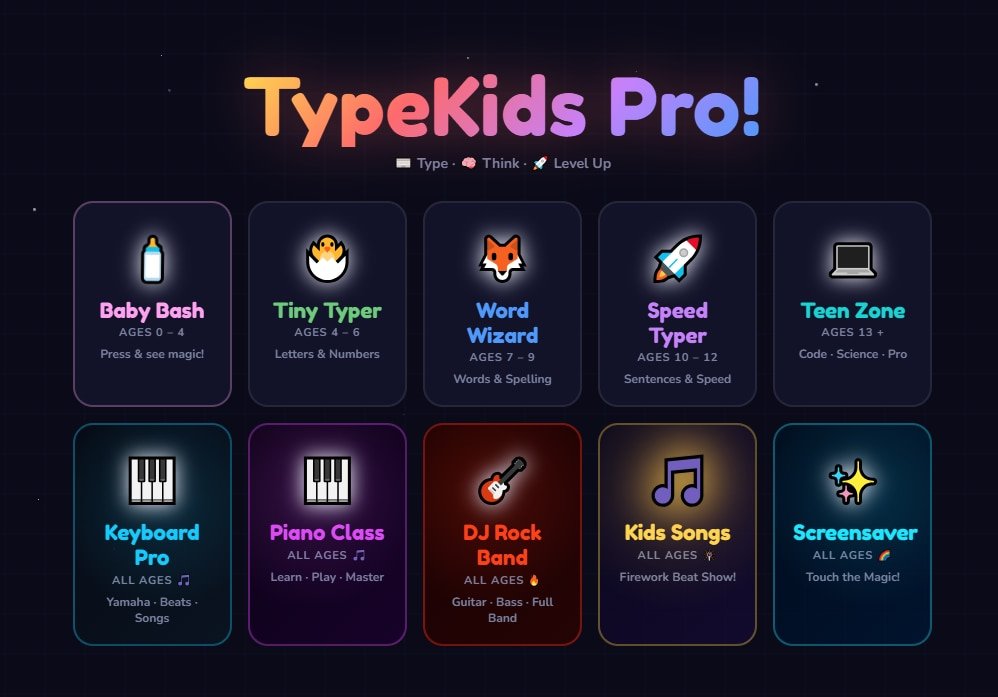
Type Kids Pro is a free online typing tool designed specifically for children and young beginners who are learning to type for the first time. Unlike the other typing tools on TypingMasterPro, which are built primarily for students and professionals seeking to measure or improve their WPM, Type Kids Pro takes a fundamentally different approach: it makes the process of learning where the keys are and how to type correctly feel like a game rather than a lesson. Available directly on this page with no account, no download, and no cost, it is one of the most accessible typing tools for young learners available online.
Note: Click on Link 1 to learn more about iframes, so you can understand how this typing tool currently works. A live page will open where you can try out this typing tool.
Link 1 – (https://typingmasterpro.com/type-kids-pro/) click here and start typing.
Link 2 – (https://typingmasterpro.com/) Homepage
Type Kids Pro is a browser-based typing learning tool built around an age-appropriate, visually engaging format that introduces children to the keyboard in a structured, progressive way. It uses bright visuals, simple instructions, and short exercises that match the attention span and learning pace of young users. The tool covers the full keyboard from home row through to numbers and basic punctuation, presenting each new key in the context of a fun exercise rather than a formal lesson.
The core philosophy of Type Kids Pro is that children learn best when they do not feel like they are studying. By wrapping keyboard learning in a game-like format with visual rewards and immediate positive feedback, the tool keeps young users engaged through what would otherwise be a repetitive process. The same key needs to be pressed many times before muscle memory develops. Making those repetitions feel like part of a game is the most effective way to make children willing to do them.
What Type Kids Pro offers:
Type Kids Pro is designed to be simple enough for a child to navigate independently. Here is how to get started:
For parents or teachers supervising a child’s first sessions, sit with them for the first two or three exercises to make sure they understand the finger placement instructions and are not looking at the keyboard to find each key. Establishing correct habits in the first few sessions is much easier than correcting bad habits after weeks of practice.
This is one of the most common questions parents and teachers ask. The practical answer depends on the child rather than a fixed age, but here are the general guidelines most educators follow:
| Age Range | Readiness Signs | Recommended Approach | Realistic Goal |
| 5 to 6 years | Can recognise all letters, basic computer familiarity | Exploratory key play, no formal lessons yet | Letter recognition on keyboard |
| 7 to 8 years | Confident letter recognition, basic reading ability | Short 10-min sessions, home row introduction | Home row keys by feel, 5 to 10 WPM |
| 9 to 10 years | Reads comfortably, can focus for 15 to 20 min | Structured lessons, full alphabet coverage | 20 to 30 WPM with basic accuracy |
| 11 to 12 years | Strong reading ability, sustained focus | Daily practice sessions, speed building | 35 to 50 WPM, 90%+ accuracy |
| 13+ years | Adult learning capacity | All typing tools suitable | 50+ WPM is achievable within months |
These are starting points, not strict rules. Some children are ready to begin structured keyboard learning at age 6. Others benefit from waiting until 8 or 9. The most important signal is whether the child can recognise all 26 letters reliably and sit comfortably at a keyboard without the keys feeling physically overwhelming.
Many adults who type every day were never formally taught. They developed their own systems through trial and error – two fingers, four fingers, looking at the keyboard, using only one hand for certain keys. These self-taught systems work up to a point, typically somewhere in the 30 to 50 WPM range, and then they plateau. Breaking that plateau requires unlearning bad habits and rebuilding with correct technique, which is significantly harder and more time-consuming than learning correctly the first time.
Children who learn correct touch typing technique from the beginning avoid this ceiling entirely. They build muscle memory in the right patterns from day one, which means their speed ceiling is much higher and they reach useful typing speeds faster. A child who begins correct touch typing at age 9 and practices consistently can realistically reach 50 to 60 WPM by their early teens, which is a significant advantage in school, competitive exams like SSC, and eventually their careers.
When working with young learners on Type Kids Pro or any typing tool, these three habits determine whether early practice produces lasting results:
| Feature | Type Kids Pro | TypingClub | Typing.com | BBC Dance Mat Typing |
| Completely free | Yes | Partial | Partial | Yes |
| No login required | Yes | No | No | Yes |
| Age-appropriate design | Yes | Yes | Yes | Yes |
| Finger placement guide | Yes | Yes | Yes | Yes |
| Works in browser | Yes | Yes | Yes | Yes |
| No ads for children | Yes | Yes | Yes | Yes |
| School/classroom mode | No | Yes | Yes | No |
| Best for | Home practice, beginners | School use, structured course | School use, full curriculum | Very young beginners |
Consistency matters far more than duration for young learners. Short daily sessions are significantly more effective than longer sessions two or three times a week. Here is a practical home practice plan:
| Week | Daily Time | Focus | Goal by End of Week |
| Week 1 to 2 | 10 minutes | Home row keys only, no looking at keyboard | All home row keys by feel |
| Week 3 to 4 | 12 minutes | Top row keys introduced one or two at a time | Home + top row without looking |
| Week 5 to 6 | 15 minutes | Bottom row keys, full alphabet coverage | Full alphabet by feel |
| Week 7 to 8 | 15 minutes | Common short words, simple sentences | 10 to 15 WPM on simple text |
| Week 9 to 12 | 15 to 20 minutes | Increasing speed, accuracy focus | 20 to 25 WPM, 90%+ accuracy |
This plan is a guide rather than a strict schedule. Some children will move faster, some slower. The key is not to rush progression. Moving to the next keyboard zone before the current one is fully automatic creates confusion and slows overall progress. Let the child’s accuracy, not a calendar, determine when to move on.
Many Indian schools now include basic computer skills and typing as part of their curriculum from Class 3 or Class 4 onwards. Type Kids Pro can serve as a home practice complement to whatever typing software or platform is used in school. Because it requires no account and no installation, it is straightforward for parents to access on any home computer or laptop.
For teachers who want to use Type Kids Pro in a classroom setting, the tool works on any device with a browser and an internet connection. Students can work at their own pace through the lesson sequence without requiring teacher intervention for each step. The main role of the teacher in a Type Kids Pro session is to circulate and check that students are not looking at the keyboard and are using the correct finger for each key.
For schools that need a more structured platform with progress tracking, reporting, and classroom management features, dedicated school typing platforms like TypingClub or Typing.com offer these capabilities. Type Kids Pro is best suited for home use and supplementary classroom practice rather than as a complete school typing curriculum.
Type Kids Pro is a starting tool. Once a child has achieved the following milestones, they are ready to move to the broader range of typing tools on TypingMasterPro:
At this point, tools like TypeBlitz, TypeWhiz, and the Monkey Typing Test offer the next level of challenge. These tools use adult-oriented word lists and timed test formats that build speed more aggressively than kids tools. The transition should feel like a reward – moving from the kids section to the grown-up section – rather than something imposed before the child is ready.
Yes. While Type Kids Pro is designed with children in mind, adults who have never learned touch typing and find standard typing tools overwhelming can also benefit from starting here. The structured, gradual key introduction and clear finger guidance are valuable for any complete beginner regardless of age.
Type Kids Pro is most effective for children between the ages of 7 and 12. Children younger than 7 may find the keyboard physically challenging and the concepts difficult to follow. Children older than 12 typically progress faster with tools designed for older learners, such as KeyBlaze on TypingMasterPro.
Yes. Type Kids Pro on TypingMasterPro is completely free with no account required and no paid features.
Ten to fifteen minutes per day is the recommended daily practice duration for children aged 7 to 10. Older children can extend to 15 to 20 minutes. Sessions shorter than 10 minutes do not provide enough repetition. Sessions longer than 20 minutes risk fatigue that reduces the quality of muscle memory being built.
Cover the keyboard with a small cloth or piece of cardboard during practice sessions. This removes the temptation to look and forces the brain to build the positional memory that touch typing requires. It feels very uncomfortable for the first few sessions and becomes easier quickly. You can also try keyboard covers designed for this purpose, which are available inexpensively online.
Type Kids Pro works in tablet browsers, but a physical keyboard is necessary for meaningful typing practice. Typing on a touchscreen does not build the same muscle memory as typing on physical keys. If your child uses a tablet, connect a USB or Bluetooth keyboard for their practice sessions.
When your child can type all 26 letters without looking at the keyboard, using the correct finger for each key, at a speed of 15 WPM or above with 90% accuracy, they are ready for the next level. TypeBlitz and TypeWhiz on TypingMasterPro are natural next steps.
Use the Type Kids Pro tool in the iframe above to begin your child’s first typing lesson. Start with the home row, keep sessions to 10 minutes, and make sure they are not looking at the keyboard from day one. Return daily and follow the lesson sequence at the child’s natural pace.
As your child progresses, explore the other tools on TypingMasterPro. KeyBlaze provides the next level of structured lessons for older children and teenagers. TypeBlitz and TypeWhiz offer quick daily speed tests. Tiny Fingers Pro is another dedicated kids typing tool available on this site. All tools are free and available without login.