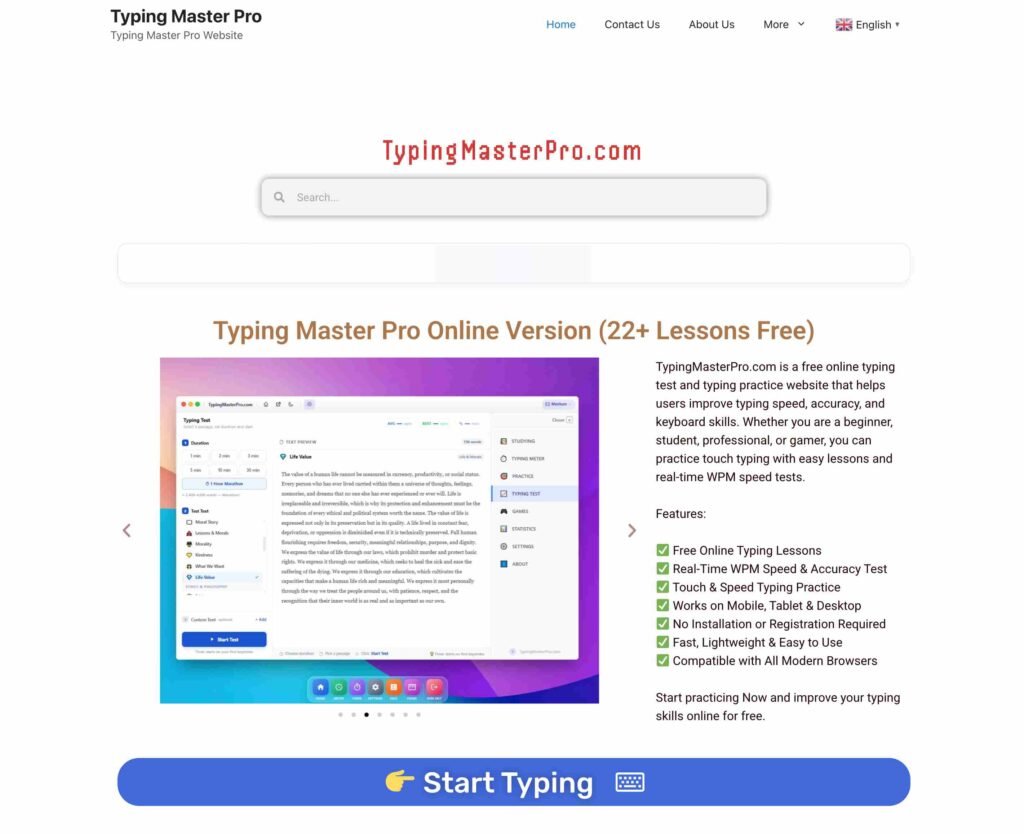
With this online ‘Typing Master Pro’ tool, you will enjoy an exceptional typing test experience. It is beneficial for users of all backgrounds-whether you are a student or a government/private sector employee; this tool will assist you at every step of your journey, from the very basics to becoming a typing expert (Pro). With the help of the lesson series provided here and daily typing practice, you can master the art of typing and achieve a typing speed of 80+ WPM-a proficiency level sufficient for almost all government examinations and corporate requirements. An iframe and HTML code are provided below, guaranteed to work 100%; links to both the homepage and the typing tool are included here. So go ahead and start typing today.
Note: Click on Link 1 to learn more about iframes, so you can understand how this typing tool currently works. A live page will open where you can try out this typing tool.
Link 1 – (https://typingmasterpro.com/typing-master-pro-version-online) click here and start typing.
Link 2 – (https://typingmasterpro.com/) Homepage
The only structured, curriculum-based free typing course on TypingMasterPro.com – 22+ lessons that take you from complete beginner to confident, fast, and accurate touch typist. No registration, no payment, no download.
| 22+ Free Lessons | No Registration | Touch Typing Focus | All Levels Welcome |
| Full structured curriculum | Start learning instantly | Correct finger placement training | Beginner to advanced covered |
| Written by the TypingMasterPro Editorial Team · Reviewed for accuracy May 2026 · ~3,000 words · Read time: ~12 minutes |
Most free typing tools on the internet are speed tests – they measure how fast you currently type and show you a number. That is useful for benchmarking, but it does not actually teach you to type better. Knowing your WPM is not the same as knowing what to change, what to practise, or how to build the finger habits that produce lasting improvement.
Typing Master Pro Online is different. It is a structured, curriculum-based typing course – 22 lessons that are designed to be completed in sequence, each one building directly on the skills from the lesson before. It starts at the very beginning, with just eight keys on the home row, and progresses systematically through the full keyboard, punctuation, numbers, symbols, and finally speed drills – all the way to a final benchmark test that measures exactly how far you have come.
The course is available entirely free on TypingMasterPro.com. No account is required. No payment is ever asked. You open the page, click Start on Lesson 1, and begin. The tool runs entirely in your browser – nothing to install, nothing to configure, nothing that gets in the way of actually practising.
This is the flagship tool on TypingMasterPro.com – the recommended starting point for any user who wants to build proper touch typing from scratch, and equally useful for intermediate typists who have never formally learned correct finger placement and want to finally fix bad habits that are capping their speed.
| What Makes This Different from a Speed Test: A speed test measures where you are. A structured lesson curriculum changes where you are going. Typing Master Pro Online is a course – every lesson teaches you something specific, builds on what came before, and prepares you for what comes next. Speed is a by-product of the correct habits it builds, not the thing it measures. |
This tool is built for a specific kind of user: someone who wants to improve their typing fundamentally, not just track a number. Here is an honest breakdown of who benefits most and why.
If you have never formally learned to type and currently use two or four fingers while looking at the keyboard, Lesson 1 is exactly where you should start. The curriculum assumes zero prior knowledge and introduces keys one small group at a time – never more than a handful of new keys per lesson. The pacing is deliberately slow enough that beginners can build accurate muscle memory before moving forward.
This is one of the most valuable use cases and one of the least talked about. Many people who type at 45–55 WPM have reached a plateau they cannot break through – not because they lack speed, but because they developed wrong finger habits early on. Using the wrong finger for specific keys creates an inconsistent motor sequence that cannot be optimised beyond a certain speed. The structured curriculum forces correct finger placement from Lesson 1 and systematically replaces bad patterns with correct ones. This is uncomfortable for the first two weeks and then becomes noticeably faster.
The progressive, one-lesson-at-a-time structure is well-suited to students who benefit from clear milestones and visible progress. Each lesson has a defined scope and a measurable outcome – students can see exactly what they have learned and what comes next. For school programmes that include typing in their curriculum, this tool provides a complete, free, no-setup solution.
For candidates preparing for SSC CGL, CHSL, RRB NTPC, CPCT, or any state-level typing examination, the structured lessons provide the essential foundation – correct finger placement, consistent accuracy, and increasing speed. After completing the core lessons, candidates should transition to timed speed tests on TypingMasterPro.com to build exam-specific stamina and simulate real exam conditions.
People returning to office work after a break, switching careers into roles that involve heavy keyboard use, or joining remote work environments where fast written communication is expected – all benefit from the structured reset that a proper lesson curriculum provides. The course can be completed in 3–5 weeks at 15–20 minutes per day, a realistic commitment for working adults.
The tool is designed to require zero configuration before you begin. Everything you need for the first lesson is ready the moment the page loads.
Navigate to the Typing Master Pro Online page on TypingMasterPro.com. The course interface loads instantly in your browser. No installation, no account creation, no loading screen. The lesson selector and keyboard interface are immediately visible.
Always begin at Lesson 1, even if you already know how to type. The first few lessons move quickly for anyone with prior experience, but they establish the correct finger assignments from the start. Skipping to a later lesson without completing the earlier ones removes the foundation that makes the speed drills in Lessons 17–22 effective.
As each new key is introduced, the colour-coded keyboard on screen highlights which finger to use. Your index finger handles F and J – the bumped keys you can feel without looking. Every other key is assigned to a specific finger based on its position. Follow these assignments exactly. In the first few lessons this feels slow and awkward – that friction is the feeling of new muscle memory forming. It resolves after two to three days of practice on each lesson.
Each lesson has a defined accuracy and WPM threshold you need to hit before it marks as complete. Do not skip forward if you have not met the target for the current lesson. The thresholds exist because each lesson assumes mastery of the previous one. Moving forward before you are ready makes later lessons harder, not easier.
At the end of each lesson, note your WPM and accuracy score. Keep a simple record – even a text file or a piece of paper works. Watching those numbers move over three weeks of consistent practice is one of the most motivating experiences in skill building. It also tells you if a particular lesson is taking longer than expected, which is useful information about which key groups or finger assignments need more deliberate attention.
From around Lesson 12 onward, you will have covered the full alphabet, numbers, and basic punctuation. At this point, supplementing your lesson practice with timed speed tests on TypingMasterPro.com – particularly the Monkey Typing Test or Fast Fingers Typing – will accelerate your progress significantly. The lessons build the foundation. The speed tests build the pace.
| Daily Session Structure for Maximum Progress Lesson practice (10 min): Complete or repeat the current lesson until accuracy is above 94% · Speed test warm-up (5 min): One 30-second test on Monkey Typing – no pressure, just rhythm · Full speed test (5 min): One 60-second test at full effort · Review (2 min): Check per-second chart, identify slow spots. Total: ~22 minutes per day. |
The following table covers every lesson in the Typing Master Pro Online curriculum – what you practise in each one, which keys and skills are introduced, and the level and suggested timeline for completion at 15–20 minutes of daily practice.
| # | Lesson Name | What You Practice | Level / Timeline |
| 1 | Home Row Basics | Master ASDF and JKL; keys – the foundation of all touch typing | Beginner – Day 1 |
| 2 | Home Row Mastery | Full home row with correct finger assignment and no peeking | Beginner – Day 2 |
| 3 | Upper Row – QWERTY | Introducing top row keys with upward reach from home position | Beginner – Day 3 |
| 4 | Upper Row – UIOP | Completing the top row for right-hand fingers | Beginner – Day 4 |
| 5 | Bottom Row – ZXCV | Downward reach practice from home position, left hand | Beginner – Day 5 |
| 6 | Bottom Row – NM,. | Completing bottom row for right-hand fingers | Beginner – Day 6 |
| 7 | Full Alphabet Review | All 26 letters in integrated practice – speed begins here | Beginner – Week 2 |
| 8 | Common Word Practice | Top 100 most-used English words typed at increasing speed | Elementary |
| 9 | Capital Letters & Shift | Using Shift key correctly with opposite hand – essential habit | Elementary |
| 10 | Numbers Row (1–5) | Left-hand number keys with correct reach from home row | Elementary |
| 11 | Numbers Row (6–0) | Right-hand number keys completing the full number row | Elementary |
| 12 | Punctuation Basics | Period, comma, apostrophe and question mark placement | Intermediate |
| 13 | Symbols & Special Keys | @, #, $, %, &, *, (, ) – professional typing essentials | Intermediate |
| 14 | Common Phrases | Frequently typed phrases in sentences, building flow | Intermediate |
| 15 | Sentence Practice | Full sentences with mixed characters – rhythm and pace | Intermediate |
| 16 | Paragraph Typing | Multi-sentence practice – sustained accuracy at pace | Intermediate |
| 17 | Speed Building – Level 1 | Timed word bursts targeting 30–40 WPM with 95%+ accuracy | Upper Intermediate |
| 18 | Speed Building – Level 2 | Timed sentence tests targeting 45–55 WPM consistently | Upper Intermediate |
| 19 | Speed Building – Level 3 | Pushing toward 60+ WPM on mixed vocabulary passages | Advanced |
| 20 | Advanced Punctuation | Em dash, semicolon, colon, brackets in real writing contexts | Advanced |
| 21 | Professional Documents | Business email and report style typing – real-world format | Advanced |
| 22 | Final Speed Test | Full benchmark test – measures your complete improvement | Advanced |
Timelines are based on 15–20 minutes of daily practice. Users who practise more frequently or who have prior typing experience will progress faster. The lesson numbering above reflects the recommended sequence – do not skip lessons.
Every feature below is available in full at no cost, with no account required and no features locked behind a paywall or upgrade prompt.
| Feature | What It Does | Best For |
| 22+ Structured Lessons | A complete, sequenced curriculum from home row to advanced speed – not random tests | All learners, especially beginners |
| Touch Typing Curriculum | Every lesson teaches the correct finger for every key – builds permanent muscle memory | Anyone who currently looks at the keyboard |
| Real-Time WPM Counter | Live words-per-minute display updates every second during speed drills | All users |
| Accuracy Tracking | Colour-coded feedback – green for correct, red for errors – in real time | Beginners building clean habits |
| Colour-Coded Keyboard | On-screen keyboard shows which finger to use for each key press | Touch typing learners |
| Progressive Difficulty | Each lesson builds on the previous – no skipping foundations | Structured self-learners |
| Speed Drill Mode | Dedicated speed exercises after core lessons are completed | Intermediate to advanced |
| No Registration | Open the browser and start Lesson 1 – zero setup | Everyone |
| Works on All Devices | Fully responsive on desktop, laptop, tablet and mobile | All users |
| Free – All Lessons | Every one of the 22+ lessons is free with no upgrade required | Everyone |
| Instant Progress Feedback | See your WPM and accuracy at the end of every lesson | Progress-focused learners |
| Beginner Friendly UI | Uncluttered interface designed not to overwhelm new typists | Complete beginners |
One of the most common questions from users starting a typing curriculum is: how fast will I be after finishing the course? The honest answer is that it depends on your starting point, your daily practice consistency, and whether you follow the correct-finger-placement rules strictly throughout. The table below shows realistic expected ranges for users who complete each phase of the curriculum with daily practice.
| Milestone | What You’ve Covered | Expected WPM | Target Benchmark |
| End of Lesson 7 | Full alphabet learned | 20–30 WPM | Accuracy above 90% |
| End of Lesson 12 | All keys + punctuation | 35–45 WPM | Accuracy above 93% |
| End of Lesson 17 | Speed drill Level 1 | 45–55 WPM | Consistency above 75% |
| End of Lesson 20 | Advanced characters | 55–65 WPM | Consistency above 80% |
| End of Lesson 22 | Final benchmark test | 65–80 WPM | Accuracy above 95% |
These ranges assume that the user does not look at the keyboard from Lesson 3 onward and follows the correct finger assignments throughout. Users who continue looking at the keyboard during lessons will see much slower progress and a lower ceiling, regardless of how many hours they practise.
| The Single Biggest Factor in Your Progress Whether or not you look at the keyboard. Users who stop looking at the keyboard from Lesson 3 and enforce that discipline consistently reach 65+ WPM within five weeks. Users who continue glancing down – even occasionally – plateau in the 40–50 WPM range and find it very difficult to break through, regardless of how much time they put in. |
The following plan is designed for users who want to complete the full curriculum in 30 days at a pace that is demanding but realistic for most adults and students. Each phase has a clear focus and a milestone target so you always know where you are in your progression.
| Timeline | Lessons | Focus | Milestone Target |
| Days 1–3 | Lessons 1–3 | Home row only – accuracy above all else. No rushing. | ASDF JKL; by instinct |
| Days 4–6 | Lessons 4–6 | Introduce top and bottom rows gradually – still no peeking. | All 26 keys without looking |
| Days 7–10 | Lessons 7–10 | Full alphabet + numbers – start tracking daily WPM. | 25+ WPM, 92%+ accuracy |
| Days 11–14 | Lessons 11–15 | Punctuation and full sentences – rhythm builds here. | 35+ WPM, 94%+ accuracy |
| Days 15–20 | Lessons 16–19 | Speed drills begin – push pace while maintaining accuracy floor. | 50+ WPM, 94%+ accuracy |
| Days 21–30 | Lessons 20–22 | Advanced symbols, professional text, final benchmark test. | 65+ WPM, 95%+ accuracy |
Some lessons will take longer than the plan suggests – typically the ones that introduce a cluster of less-used keys like Q, Z, X, or the numbers row. This is completely normal. When a lesson is taking significantly longer than expected, do not skip it. Instead, repeat the lesson with one specific constraint: focus on the two or three keys that are causing the most errors, and type them in isolation twenty times each before returning to the full lesson. This targeted repetition resolves the specific motor sequence issue much faster than repeatedly running the full lesson and hoping the problem resolves itself.
From Day 11 onward, add one 60-second Monkey Typing Test to the end of each session. Keep the results separate from your lesson progress. The lesson WPM and the speed test WPM measure different things – lesson WPM reflects accuracy on unfamiliar key combinations; speed test WPM reflects fluency on common English words. Both numbers should be rising, but they will rise at different rates.
Lessons 1 and 2 introduce just the home row – eight keys. By Lesson 3 you should know those eight keys well enough to type them without looking. From that point forward, treat looking at the keyboard as a failed attempt, not a shortcut. Cover your hands if needed. The motor memory you are building is the entire point of the curriculum. Every time you look down, you interrupt the formation of that memory.
The accuracy threshold for each lesson exists because accuracy at low speed is the proof that your fingers know the key – not just that you can eventually find it. A lesson you can complete at 94% accuracy is a lesson your hands have genuinely learned. A lesson you complete at 80% accuracy means you are still searching for several keys, and the next lesson will make that worse. Repeat until the threshold is met – every time, without exception.
Too slow and you are not building useful motor patterns – you are just moving your fingers deliberately rather than automatically. Too fast and you accumulate errors that reinforce wrong habits. The productive speed is just above comfortable: fast enough that your fingers have to reach for their memory rather than think, slow enough that they find the right key more than 90% of the time.
The on-screen keyboard shows you the correct finger for each key. Glance at it when you are introduced to a new key – then stop using it as a reference. If you find yourself watching the on-screen keyboard to find a key during a lesson, you need to repeat the lesson with your eyes on the text, not the keyboard display. The on-screen keyboard is a reference tool, not a guidance system.
Earlier lessons feel slow and easy for users who already have some typing experience. This is exactly when skipping feels tempting and exactly when it is most harmful. Lessons 1–7 establish the home row – the anchor from which every other key is reached. If your home row instinct is not automatic, every subsequent lesson is built on a shaky foundation. Spend a single session on each of the first seven lessons, hit the accuracy threshold, and move on. This takes three to five hours total and saves you weeks of plateau later.
Keep a simple record after each lesson: the lesson number, the date, your WPM, and your accuracy. After ten lessons, look for patterns. Which lessons produced the biggest WPM gains? Which ones required the most repetitions? The lessons you struggled with most are almost always the ones that introduced a finger reach that your hand finds awkward – identifying this early helps you give those specific reaches more deliberate practice in your daily warm-ups.
The Typing Master Pro Online curriculum builds skill. The speed tests on TypingMasterPro.com build pace and stamina. Both are necessary. After completing Lesson 12, spending the last five minutes of each session on a 60-second Monkey Typing Test will reinforce the fluency you are building in the lessons and give you a separate benchmark for your raw speed progress.
Motor memory consolidates during rest. Typing skill, like any physical skill, benefits from recovery time. Users who practise seven days a week with no break often find their WPM stagnates or even drops slightly after the second week. A single rest day per week gives the neural pathways time to consolidate what they have been learning. Return after the rest day and you will frequently notice that difficult key sequences feel smoother than they did before the break.
Several free typing lesson platforms are available online. The following comparison focuses on the features that matter most for users who want a complete, structured learning experience – not just a speed test with a few exercises added.
| Feature | Typing Master Pro (This Tool) | TypingClub | KeyBr | Ratatype | Keyhero |
| Free – All Lessons | Yes | Yes | Yes | Partial | Yes |
| No Account Required | Yes | No | Yes | No | Yes |
| Structured Curriculum | Yes | Yes | Partial | Yes | No |
| 22+ Lessons | Yes | Yes | No | Limited | No |
| Touch Typing Training | Yes | Yes | Yes | Yes | No |
| Speed Tests Included | Yes | Partial | Yes | Yes | Yes |
| Works on Mobile | Yes | Yes | Yes | Yes | Partial |
| Colour-Coded Keyboard | Yes | Yes | Yes | Yes | No |
| No Ads Mid-Lesson | Yes | No | Yes | Partial | Partial |
| Progress Saved Locally | Yes | No | Yes | No | No |
Y = Yes (fully supported) · N = No (not available) · P = Partial (limited version) · L = Limited (fewer than 10 lessons)
The combination of a complete 22-lesson curriculum, zero registration requirement, and no ads during lessons is the most important differentiator in this comparison. TypingClub is the most comparable alternative in terms of curriculum depth, but it requires an account and shows ads in the free version. KeyBr offers excellent adaptive training but focuses on individual key frequency rather than a structured progression from home row to full keyboard – a different approach that suits some learners less well. Ratatype’s free version restricts lesson access behind a sign-up wall.
For users who want to learn touch typing from scratch without creating an account, without paying, and without working through a sign-up flow before they can even see Lesson 1 – Typing Master Pro Online is the most accessible complete curriculum currently available for free.
For anyone who genuinely wants to learn to touch type – not just measure their current speed – the answer is yes, without qualification. The 22-lesson curriculum is the most direct path from hunt-and-peck to proper touch typing available on TypingMasterPro.com, and one of the most accessible free typing courses available anywhere online.
The key advantage over speed tests is that it gives you something to do rather than something to measure. Every session has a specific goal, a clear success criterion, and a defined next step. That structure removes the uncertainty that causes most self-taught learners to plateau – they practise without direction, measure without feedback, and wonder why their WPM has not moved in months.
Three things determine how much you get from this course: whether you refuse to look at the keyboard, whether you repeat lessons until the accuracy threshold is genuinely met, and whether you practise daily in short sessions rather than occasionally in long ones. All three are entirely within your control. The curriculum provides the road – how far you go on it depends on the discipline you bring to each fifteen-minute session.
Start at Lesson 1 today at typingmasterpro.com/typing-master-pro-version-online – no account, no payment, no download. Just Lesson 1, the home row, and your first step toward typing without ever looking at the keyboard again.
| Free · No sign-up · 22+ structured lessons · Complete touch-typing curriculum from beginner to advanced · Colour-coded keyboard guide · Speed drills included · Progress saved locally · No ads during lessons. The most complete free typing course on TypingMasterPro.com. |
The following questions and answers address the most common queries about the course. This section is structured for FAQPage schema markup to support Google rich results.
| Question | Answer |
| Is Typing Master Pro Online completely free? | Yes – 100% free. All 22+ lessons, the speed drills, and every feature are fully accessible without paying, signing up, or downloading anything. |
| Do I need to create an account? | No. You open the page, click Start, and begin Lesson 1 immediately. No email, no password, no registration of any kind is ever required. |
| How long does it take to complete all 22 lessons? | At 15–20 minutes per lesson with daily practice, most users complete the full curriculum in 3–5 weeks. Progress depends entirely on consistency, not the number of hours in any single session. |
| Can a complete beginner start from Lesson 1? | Absolutely. Lesson 1 starts with just the home row keys – F, D, S, A, J, K, L, and semicolon. No prior typing knowledge is assumed. The curriculum is designed from the ground up for complete beginners. |
| What WPM can I expect after completing all lessons? | Most users who complete the full curriculum with daily practice reach 60–75 WPM with 95%+ accuracy. The final benchmark test in Lesson 22 gives you a precise measurement of your improvement. |
| Will it teach me to type without looking at the keyboard? | Yes – that is the primary goal of the curriculum. Every lesson is designed around correct finger placement and home row muscle memory. After completing Lesson 7, most users find they no longer need to look at the keyboard for the letters they have covered so far. |
| Can I use this to prepare for a government typing exam? | Yes. After completing the core lessons, switch to the Monkey Typing Test or Fast Fingers Typing on TypingMasterPro.com for timed exam simulation. The curriculum builds the foundation; the speed tests build exam-ready performance. |
| Does the tool save my progress between sessions? | Yes. All lesson progress and personal settings are stored in your browser’s localStorage. Nothing is uploaded to any server. Your data stays entirely on your own device. |
| Is this suitable for children learning to type? | Yes. The structured, one-key-at-a-time curriculum is well-suited to younger learners. For a dedicated children’s interface, the Type Kids Pro tool on TypingMasterPro.com is also available. |
| Does it work on a phone or tablet? | Yes, the interface is fully responsive. For learning touch typing, a physical keyboard on a desktop or laptop gives significantly better results than a touchscreen. |